



The Ultimate 2026 Guide to Seamless IPTV & Streaming Setup
Are you tired of expensive cable bills and limited entertainment options? The future of television is here, and it’s more flexible, affordable, and content-rich than ever. Modern IPTV devices and streaming devices IPTV have democratized access to global live TV, movies, and series, putting a universe of entertainment at your fingertips. This comprehensive guide will demystify the setup process, optimize your experience, and ensure you stream safely and smoothly. Whether you’re a cord-cutter veteran or a curious newcomer, this data-driven walkthrough is your roadmap to mastering digital entertainment in 2026.
—
Required Devices & Recommended Apps
Before diving into setup, you need the right hardware and software. The beauty of modern streaming is its device agnosticism. You can enjoy content on virtually any screen with an internet connection.
Compatible Hardware:
- Smart TVs: Most modern Smart TVs (Samsung Tizen, LG webOS, Android TV/Google TV, Vizio SmartCast) have built-in app stores.
- Dedicated Streaming Sticks/Boxes: Amazon Fire TV Stick (all versions), Roku Streaming Stick+, Chromecast with Google TV, and Apple TV 4K offer powerful, dedicated interfaces.
- Android TV Boxes: Devices like the NVIDIA Shield TV Pro or Chromecast with Google TV provide the most open ecosystem for sideloading apps.
- Mobile Devices: Smartphones and tablets (iOS/Android) are perfect for on-the-go viewing.
- Computers: Use a web browser on Windows, macOS, or Linux for direct web-player access from many services.
Essential & Recommended Apps:
Your choice of app depends on your IPTV service provider and content preferences. Popular, reputable players include:
- TiviMate: The gold standard for IPTV with a beautiful, cable-like EPG (Electronic Program Guide). Ideal for managing playlists.
- OTT Navigator: A powerful, highly customizable player for m3u links and EPG sources.
- Smart IPTV (SIPTV): A long-standing, simple player popular on Smart TVs.
- Kodi: An open-source media center that, with proper add-ons, can aggregate live TV, videos, and music.
- Native Apps: Services like Hulu + Live TV, Sling TV, YouTube TV, and Philo have their own official apps for a seamless, legal experience.
—
Setup Guide: Step-by-Step Configuration
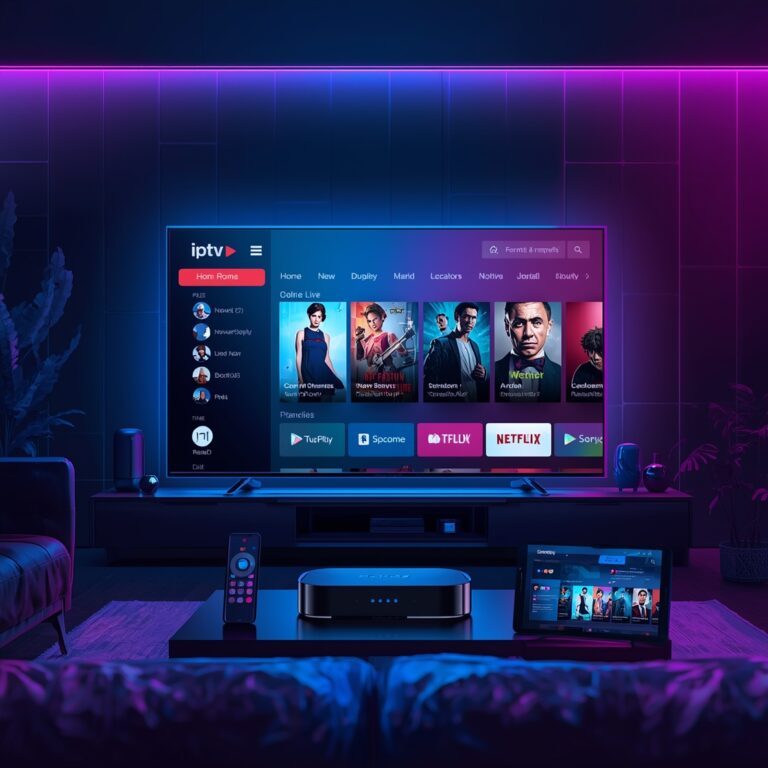
Follow these universal steps, with minor variations by device:
1. Connect & Update: Plug your streaming stick/box into your TV’s HDMI port and connect it to power. Ensure it’s connected to your Wi-Fi or Ethernet. Go to settings and install all available system updates.
2. Install Your Player App: Navigate to your device’s app store (Google Play Store for Android TV, Amazon Appstore for Fire TV, LG/Samsung stores for Smart TVs). Search for and install your chosen player (e.g., TiviMate, OTT Navigator).
3. Add Your IPTV Service: Open the app. You will be prompted to enter your IPTV service provider’s details. This is typically an M3U playlist URL or an Xtream Codes API URL (username, password, and server URL). Always obtain these credentials from a legitimate, paid service provider.
4. Load the EPG: The app will fetch the channel list and program guide (EPG). This may take a few minutes depending on the provider’s server load.
5. Organize & Enjoy: Use the app’s settings to favorite channels, create groups (Sports, News, Movies), and set parental controls. The interface should now resemble a modern cable box guide.
Pro Tip: For the best experience on streaming devices IPTV, use a wired Ethernet connection whenever possible. If you must use Wi-Fi, ensure a strong 5GHz signal to avoid interference.
—
Streaming Quality & Performance Tips
A frustrating buffer can ruin any show. Optimize with these proven strategies:
- Internet Speed is King: For HD (1080p), a consistent 25 Mbps connection is the baseline. For 4K streams, aim for 50+ Mbps. Use a site like Speedtest.net to check your actual speed.
- Wired Over Wireless: As mentioned, an Ethernet cable eliminates Wi-Fi congestion and provides a rock-solid connection.
- Reduce Network Congestion: During peak hours (evenings), other devices on your network (game consoles, cloud backups) can throttle your stream. Schedule large downloads for off-hours or use your router’s Quality of Service (QoS) settings to prioritize streaming traffic.
- Player App Settings: Within your app (like TiviMate), adjust the video buffer size. A larger buffer (e.g., from 3 to 5 seconds) can smooth out minor internet hiccups but adds slight delay. Disable auto-resolution if you want to lock in a specific quality.
- Device Capability: Ensure your IPTV devices are powerful enough. Older Fire TV Sticks or low-end Android boxes can struggle with high-bitrate 4K streams, causing stutter. Upgrading to a device with a better processor (like a Fire TV Stick 4K Max or NVIDIA Shield) is a worthwhile investment.
—
Advantages of Modern Streaming
The shift from traditional cable hasn’t just been about cost—it’s a fundamental upgrade in how we consume media:
- Unprecedented Flexibility: Watch what you want, when you want, on almost any screen. Pause live TV, catch up on missed episodes, and binge entire seasons.
- Global Content Access: Legitimate IPTV service providers often offer extensive international channel packages, bringing news, sports, and entertainment from around the world directly to your living room.
- Cost Efficiency: Combine niche services (like a sports package) with a base live TV service for often 30-50% less than a comparable cable bundle.
- No Long-Term Contracts: Month-to-month subscriptions mean you’re never locked in. Cancel or switch services based on season or interest.
—
Troubleshooting & Common Issues
- “Buffering/Spinning Wheel” Constantly: This is 95% an internet issue. Test your speed on another device. Restart your router and streaming device. If persistent, contact your IPTV service provider—their server might be overloaded.
- Channel Not Loading/“No Signal”: The specific channel stream may be down. Try another channel. If all channels fail, your playlist/API URL may be incorrect or your subscription may have expired.
- EPG/Guide Not Showing or Incomplete: Force-refresh the EPG within your app’s settings. Ensure your provider’s EPG URL is active. Sometimes, a full re-login to the app is needed.
- App Crashes or Freezes: Clear the app’s cache (Settings > Apps > [Your Player] > Clear Cache). If that fails, reinstall the app. Check for system updates on your streaming device.
- Audio/Video Desync: Look for an “A/V Sync” or “Audio Delay” setting in your player app and adjust by milliseconds until sync is restored.
—
Security & Safe Streaming Tips
The open nature of IPTV requires vigilance. Protect yourself with these non-negotiable practices:
1. Use a Reputable VPN: This encrypts your traffic, preventing your ISP from throttling your stream and masking your IP address from potentially malicious public networks. It also adds a layer of privacy.
2. Stick to Legal Grey Areas (With Caution): While many IPTV devices access officially licensed streams, the ecosystem has unlicensed services. Research your provider thoroughly. Services that offer every premium channel for $10/month are almost certainly illegal and pose significant malware and legal risks.
3. Keep Everything Updated: Regularly update your streaming device’s firmware, your player apps, and your VPN. Updates patch security vulnerabilities.
4. Beware of “Free” IPTV Lists: You get what you pay for. Free playlists are often unstable, filled with ads/malware, and disappear quickly. A small monthly fee for a reputable service ensures reliability, support, and better security.
—
Conclusion
The landscape of home entertainment has irrevocably changed. By selecting the right IPTV devices, pairing them with a reliable player app, and following our optimization and security protocols, you can build a premium, flexible, and cost-effective TV system. The key is informed choices: prioritize a stable internet connection, choose a trustworthy service, and always layer in security. The world of content is waiting—take control of your viewing experience today. For deeper dives into specific device configurations and provider comparisons, explore our full library of setup guides.
—
FAQs
Q1: Do I need technical skills to set up an IPTV service?
A: Not really. The process is designed to be user-friendly: install an app, enter a URL, and load. This guide provides the exact steps. The most technical part is ensuring your home network is stable.
Q2: Can I use one IPTV subscription on multiple devices at once?
A: It depends entirely on your IPTV service provider’s policy. Most offer tiered plans (e.g., 1, 2, or 5 connections). A single connection typically allows use on multiple devices but only one concurrent stream. Always check your provider’s terms.
Q3: What’s the difference between an M3U link and Xtream Codes?
A: An M3U is a simple text file/URL with a list of channel links. Xtream Codes is a more advanced API that also includes the EPG, user credentials, and server info in one structured URL. XtreamCodes generally provides a more reliable, feature-rich experience in apps like TiviMate.
Q4: My stream is in HD, but my TV is 4K. Can I get 4K quality?
A: Only if your IPTV service provider offers 4K streams for those specific channels/events and your internet speed (50+ Mbps) and streaming devices IPTV (like a Shield TV Pro or Fire TV Stick 4K Max) can handle it. Most live IPTV is still broadcast in 1080i/p due to bandwidth constraints.
Q5: Is IPTV legal in my country?
A: The technology (sending video over IP) is legal. However, the legality hinges entirely on the content source. Using a service that has licensed agreements with content owners is legal. Using a service that retransmits copyrighted content without permission is illegal in most jurisdictions. Research your provider’s legitimacy.