


Unlock Endless Entertainment: Your Complete 2026 IPTV & Streaming Setup Guide
The way we consume television has undergone a radical transformation. No longer are we bound to rigid cable schedules or exorbitant monthly bills. Modern streaming and Internet Protocol Television (IPTV) have democratized entertainment, putting a global library of live channels, movies, and shows at your fingertips. But this freedom comes with a critical responsibility: knowing how to set up and maintain your system correctly. Many users encounter issues right from the start, leading to frustrating experiences with IPTV not working as expected. This guide cuts through the noise. We provide a definitive, step-by-step walkthrough for 2026, covering everything from device selection and app configuration to optimizing performance and solving common problems. By the end, you’ll have the knowledge to build a reliable, high-quality streaming setup that truly works for you.
Required Devices & Apps: Building Your Streaming Foundation
Before diving into setup, you need the right hardware. The beauty of modern streaming is its cross-platform compatibility. Here’s a breakdown of the best devices:
- Smart TVs & Android TV: Most modern Smart TVs (Samsung Tizen, LG webOS, Android TV/Google TV) have built-in app stores. Android TV boxes offer the most flexibility.
- Amazon Firestick / Fire TV: The perennial favorite for cord-cutters due to their affordability, ease of use, and sideloading capabilities.
- Mobile Devices: Smartphones and tablets (iOS/Android) are perfect for on-the-go viewing via dedicated apps.
- Set-Top Boxes: Devices like the NVIDIA Shield, Apple TV, orFormuler boxes provide powerful, dedicated streaming performance.
Crucially, the app you choose is as important as the device. Reputable IPTV player apps like TiviMate, IPTV Smarters, or Smart IPTV offer robust EPG (Electronic Program Guide) integration, user-friendly interfaces, and better stability. Always download apps from official sources like the Google Play Store, Apple App Store, or Amazon Appstore to avoid malware. Using untrusted APK files is a primary reason for IPTV not working and can compromise your device’s security.
Setup Guide: Step-by-Step Configuration
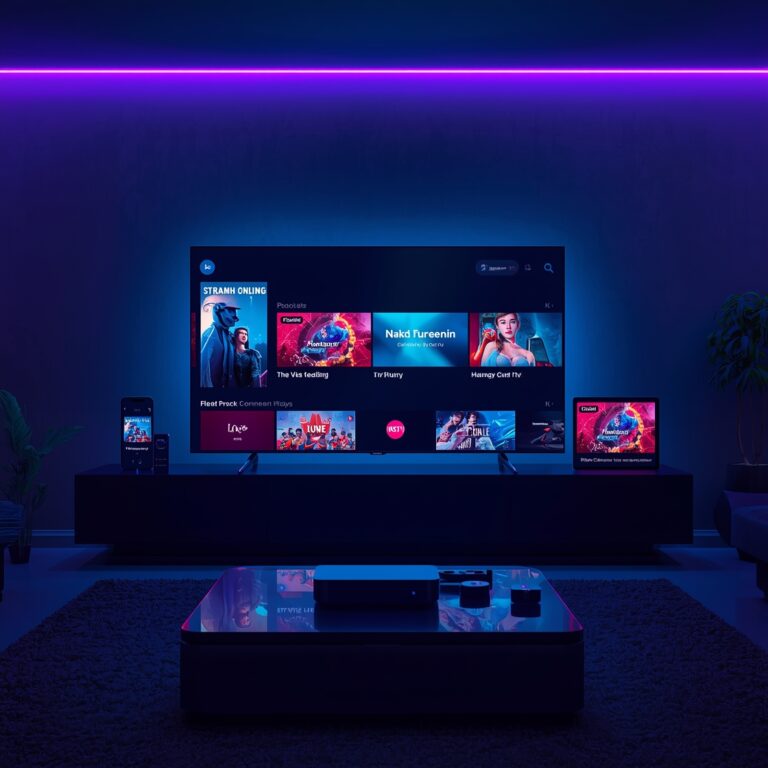
Setting up your IPTV service is a straightforward process when followed in order. This image illustrates a typical successful login screen within a popular player app.
1. Subscribe & Obtain Credentials: Choose a reputable IPTV provider. After purchase, they will email you your unique M3U playlist URL or Xtream Codes API details (server URL, username, password, and port).
2. Install Your Player App: On your chosen device, install your preferred IPTV player app (e.g., TiviMate, IPTV Smarters) from its official store.
3. Add Your Playlist/Account:
* In the app, look for “Add Playlist,” “Add User,” or a “+” icon.
* Select “M3U URL” or “Xtream Codes” based on what your provider gave you.
* Carefully paste the URL or enter the API credentials.
* Save/Add the playlist. The app will now fetch your channel list and EPG data.
4. Organize & Enjoy: Once loaded, many apps allow you to create favorites groups, hide unwanted channels, and customize the EPG layout for a seamless browsing experience.
If you hit a snag here—playlists failing to load or login errors—that’s your first sign of potential IPTV troubleshooting needs. Double-check your credentials for typos and ensure your provider’s service is online.
Streaming Quality & Performance Tips
A setup is only as good as its performance. Nothing ruins a movie like constant buffering. Here’s how to ensure crystal-clear, smooth playback:
- Internet Speed is Non-Negotiable: For HD (1080p) streaming, a minimum of 5 Mbps per stream is required. For 4K/UHD, aim for 25 Mbps or more. Use a wired Ethernet connection for your streaming device whenever possible—it’s always more stable than Wi-Fi.
- Optimize Your Wi-Fi: If you must use Wi-Fi, ensure your device has a strong signal. Use the 5GHz band for less interference. Keep your router updated and centrally located.
- App & Device Settings: Within your player app, manually set the video quality (e.g., “Auto,” “1080p,” “4K”) instead of leaving it on automatic, which can sometimes misjudge bandwidth. Regularly clear the app’s cache.
- Manage Network Traffic: Ensure no other devices are performing heavy downloads, cloud backups, or 4K streaming on other TVs during your prime viewing time.
Advantages of Modern Streaming & IPTV
Why go through this setup? The benefits are transformative:
- Unmatched Flexibility & Cost: Ditch the 200-channel cable package you only use 20 of. Build a custom lineup of only the content you love, often at a fraction of the cost.
- True Multi-Device Access: Watch on your living room TV, then seamlessly continue on your tablet in the kitchen or phone in the backyard.
- Global Content Library: Access international channels, niche sports, and regional news broadcasts impossible to get through traditional providers.
- On-Demand & Catch-Up: Most services include vast VOD (Video on Demand) libraries and catch-up TV features for missed shows.
Troubleshooting & Common Issues (And How to Fix Them)
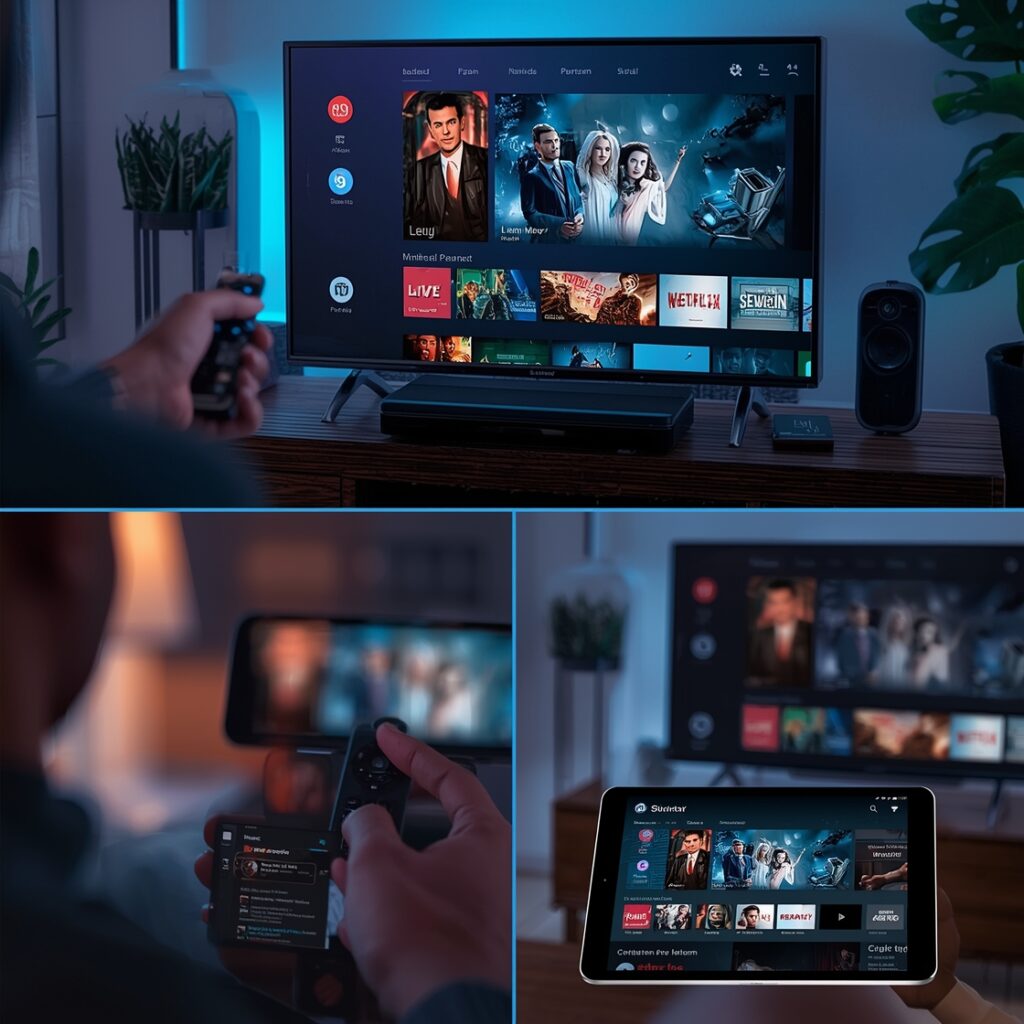
Even the best setups encounter hiccups. This image represents the kind of error messages or buffering screens users frequently face.
When channels freeze, show “No Signal,” or your playlist won’t load, systematic IPTV troubleshooting is key. Follow this hierarchy:
1. Check the Basics: Is your internet working on other devices? Is your IPTV provider’s service status page reporting any outages? Restart your router and streaming device.
2. App-Specific Issues: Force-stop and clear the cache of your IPTV player app. Remove and re-add your playlist/account.
3. Device & Network: Ensure your device’s firmware is updated. If on Wi-Fi, try moving closer to the router or switch to a wired connection. Disable any VPNs temporarily to test if they are throttling speed.
4. Provider Support: Contact your IPTV provider with specific details: which channels fail, the time it happens, and your device type. The issue may be on their end (server overload or expired playlist).
Persistent IPTV not working problems after these steps usually point to either an unreliable provider or a deeper device/network configuration issue.
Security & Safe Streaming Tips
Your streaming hobby shouldn’t put your digital safety at risk.
- Use a Reputable VPN: A VPN encrypts your traffic, hiding your streaming activity from your Internet Service Provider (ISP). This prevents throttling and adds a layer of privacy. Crucially, choose a paid, no-logs VPN service. Free VPNs often have bandwidth limits and can be security risks themselves.
- Source Apps Carefully: Only install apps from official stores or developers with a proven reputation. Avoid random “free IPTV” websites promising everything—they are often laden with malware or lead to phishing scams.
- Guard Your Credentials: Never share your M3U URL or Xtream Codes login details. They are as sensitive as a password.
- Understand the Legal Gray Area: While the technology (IPTV) is neutral, the content you access depends on your provider’s licensing. Ensure your provider has the rights to distribute the content in your region to stay on the right side of the law.
Conclusion: Your Streamlined Entertainment Journey Starts Here
Setting up a robust streaming system in 2026 is less about technical wizardry and more about making informed choices. By selecting compatible devices, installing trusted apps, following a precise setup guide, and proactively managing your network, you unlock a world of flexible, high-quality entertainment. Remember, encountering IPTV not working is a common hurdle, but with disciplined IPTV troubleshooting—starting with your connection, moving to your app, and then your provider—you can resolve most issues swiftly. The advantages of cost savings, global access, and device freedom are well worth the initial setup effort. Don’t let a minor setback interrupt your viewing. Equip yourself with this knowledge, implement these steps, and transform your home entertainment. Ready to dive deeper? Explore our library of advanced guides on channel playlists, Electronic Program Guide (EPG) optimization, and specific device tutorials to become a true streaming expert.
FAQs
Q1: My IPTV playlist loads but channels buffer constantly. What’s the first thing I should check?
A: Your internet speed and connection stability. Run a speed test on your streaming device. If you’re on Wi-Fi, switch to a wired Ethernet cable to rule out wireless interference as the cause.
Q2: Is it legal to use IPTV?
A: The IPTV technology itself is legal. The legality depends entirely on your service provider and whether they hold proper licenses for the content they redistribute. Always research your provider’s legitimacy.
Q3: Can I use my IPTV subscription on multiple devices at once?
A: It depends on your provider’s policy. Some allow 1-2 concurrent connections, while others offer “family plans” for more. Exceeding your allowed connections will typically cause all streams to fail, leading to IPTV not working on all devices.
Q4: What’s the real difference between an M3U URL and Xtream Codes?
A: M3U is a simple text file list of channel streams. Xtream Codes is a more advanced API that provides a richer experience, including a built-in EPG, VOD catalog, and user authentication, leading to a more app-like and stable interface.
Q5: My Firestick says “App Not Compatible” when I try to install an IPTV player. What do I do?
A: This often means the app isn’t in the official Amazon Appstore. You’ll need to “sideload” it using the “Downloader” app. Ensure you only download APK files from the official developer’s website, not third-party sites, to avoid malware.