


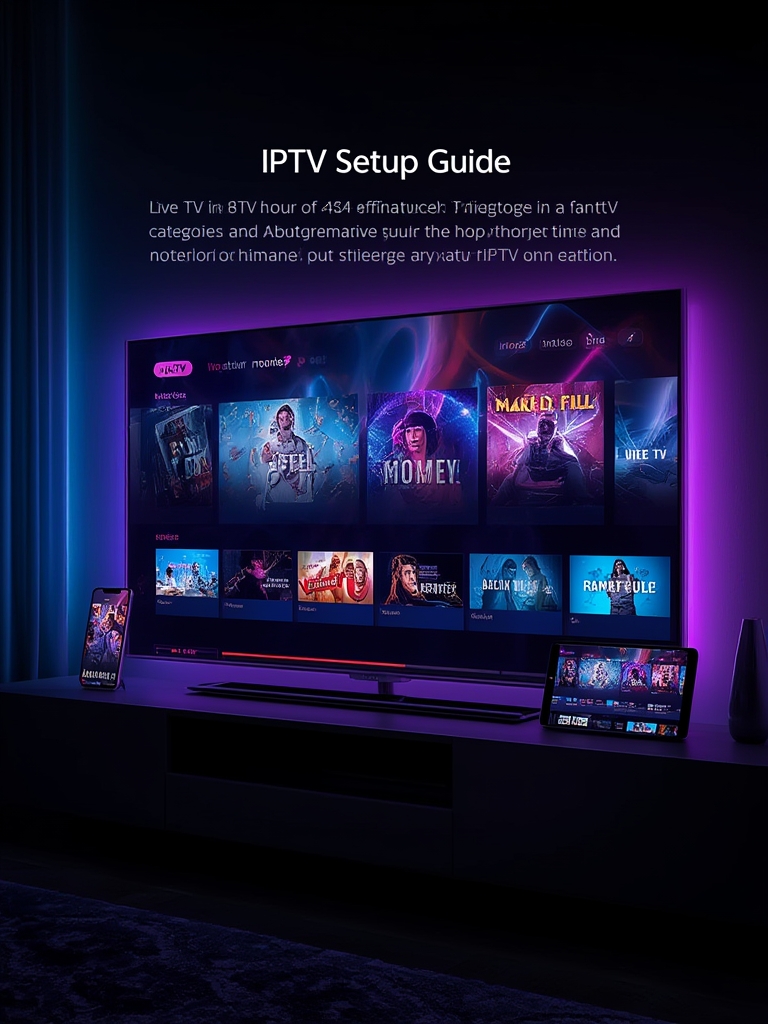
Unlock Unlimited Entertainment: Your Complete IPTV Setup Guide for 2024
The landscape of home entertainment has fundamentally shifted. The era of rigid cable packages and expensive subscriptions is fading, replaced by the flexibility and vast content libraries of internet-based streaming. At the heart of this revolution is IPTV (Internet Protocol Television), a technology that delivers television content over the internet instead of traditional terrestrial, satellite, or cable formats. For cord-cutters, expats, and entertainment enthusiasts, mastering an IPTV setup guide is the key to accessing thousands of live channels, international programming, and on-demand movies from a single, streamlined interface. This comprehensive guide will walk you through everything you need, from the right hardware to a flawless configuration, ensuring a premium viewing experience on any device.
Required Devices & Streaming Apps
Before diving into the setup process, you need compatible hardware and the right software. The beauty of modern IPTV is its cross-platform support.
- Smart TVs & Streaming Devices: Most modern Smart TVs (Samsung Tizen, LG webOS, Android TV, Google TV) support IPTV apps directly. For non-Android TVs, devices like the Amazon Firestick, Fire TV Cube, Roku (with limitations), or NVIDIA Shield are perfect.
- Mobile & Tablet: Android and iOS smartphones/tablets are excellent for on-the-go viewing.
- Essential Apps: You’ll need a dedicated media player or IPTV app. Top recommendations include TiviMate (best for Android TV/Firestick with a premium feel), IPTV Smarters Pro (versatile and user-friendly), Smart IPTV (popular for its simplicity), and OTT Navigator. Many apps offer free trials, allowing you to test compatibility with your service provider.
Step-by-Step Setup Guide
Setting up your IPTV service is straightforward once you have the components. Follow this precise how to set up IPTV workflow.
1. Subscribe & Get Credentials: Purchase a subscription from a reputable IPTV provider. You will receive an M3U playlist URL, an Xtream Codes API URL (username, password, server URL), or a portal login.
2. Install Your Chosen App: Go to your device’s app store (Google Play Store, Amazon Appstore, or use sideloading for Firestick) and install your selected IPTV player (e.g., TiviMate).
3. Configure the App: Open the app and look for “Add Playlist,” “Add User,” or “Login via Xtream Codes.” Enter the credentials provided by your IPTV service.
4. Load and Organize: The app will fetch the channel list, which may take a few minutes. Use the app’s built-in tools to sort channels into favorites groups, hide unwanted ones, and set up the Electronic Program Guide (EPG).
5. Start Watching: Navigate to the “Live TV” section, select a channel, and enjoy your new entertainment hub.
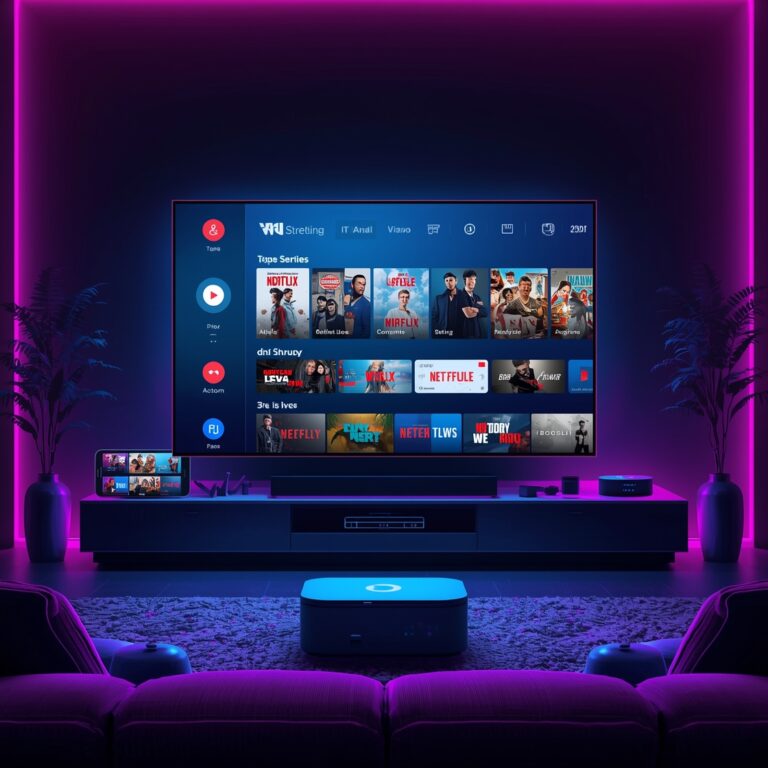
(Image: A clean, modern IPTV app interface on a big screen, showing a organized channel list and EPG.)
Streaming Quality & Performance Tips
A buffering screen is the ultimate enemy of enjoyment. Optimize your setup with these tips:
- Internet Speed is King: For HD streaming, a stable 25 Mbps connection is the baseline. For 4K, aim for 50+ Mbps. Always use a wired Ethernet connection for your streaming device if possible—it’s infinitely more stable than Wi-Fi.
- App Settings: Within your IPTV app, adjust the buffer size (often found in player settings). A slightly larger buffer (e.g., 8-10 seconds) can prevent stutters on minor network hiccups. Ensure the video player is set to “Auto” or “Hardware” acceleration.
- Network Management: Pause other bandwidth-heavy activities (large downloads, 4K streaming on other devices) during prime viewing times. If using Wi-Fi, ensure your router is modern (Wi-Fi 5 or 6) and the device is close with a strong signal.
Advantages of Modern Streaming
Why go through this setup? The benefits are substantial:
- Unmatched Flexibility: Watch what you want, when you want, on nearly any screen. No contracts, no hidden fees.
- Global Content Access: Tune into live sports, news, and shows from your home country or explore international networks effortlessly.
- Cost-Effectiveness: A single, low-monthly IPTV subscription often replaces multiple expensive cable or streaming service bills.
- Enhanced User Experience: Features like catch-up TV, series recordings (PVR), and multi-screen viewing are common in modern apps.
Troubleshooting & Common Issues
Even with a perfect setup, occasional glitches occur. Here’s how to fix them:
- “Channel Not Available” or Blank Screen: This is usually a server-side issue from your IPTV provider. Wait 10-15 minutes and try again. If persistent, check their status page or contact support.
- Buffering/Spinning Wheel: As above, this is 90% an internet speed or stability issue. Run a speed test on your streaming device. Switch from Wi-Fi to Ethernet. Reduce the stream quality in the app settings temporarily.
- EPG (TV Guide) Not Loading or Wrong: Refresh the EPG data in your app’s settings. Ensure your device’s date and time are set to “Automatic.” Some providers have a manual refresh URL.
- App Crashes or Freezes: Clear the app’s cache and data (in your device’s settings). Reboot your device. Ensure your app is updated to the latest version.
(Image: A person thoughtfully looking at a router with diagnostic tools on a tablet, symbolizing network troubleshooting.)
Security & Safe Streaming Tips
The freedom of IPTV comes with responsibilities.
- Use a VPN (Virtual Private Network): This is non-negotiable. A VPN encrypts your internet traffic, hiding your streaming activity from your ISP (which can throttle bandwidth for IPTV) and adding a critical layer of privacy. It also helps access geo-blocked content.
- Choose Providers Wisely: Research providers thoroughly. Look for established services with positive, long-term user reviews on trusted forums. Be wary of “lifetime” deals that are often too good to be true.
- Keep Software Updated: Regularly update your streaming device’s firmware and your IPTV apps to patch security vulnerabilities.
- Secure Your Network: Use a strong, unique password for your Wi-Fi router to prevent unauthorized access to your network.
Conclusion
Transitioning to IPTV empowers you to take control of your entertainment destiny. By selecting the right device, installing a capable app, and following a clear IPTV setup guide, you unlock a world of content. Remember to prioritize a strong internet connection, implement performance tweaks, and never compromise on security with a reputable VPN. The journey to seamless streaming is a combination of proper configuration and mindful optimization. Now that you understand the how to set up IPTV process, you’re ready to build your personalized media center. Explore our site for more in-depth IPTV setup guide tutorials, app reviews, and provider comparisons to enhance your journey further.
FAQs
Is IPTV legal?
The technology itself is legal. Legality depends on the content source. Using a service that has properly licensed the content it redistributes is legal. Services offering thousands of premium channels for a few dollars often source content illegally. Always research your provider’s legitimacy.
What is the best device for IPTV?
The Amazon Firestick 4K Max is a top contender due to its power, easy sideloading, and affordability. For a native TV experience, an Android TV/Google TV device (like a Sony TV or Chromecast with Google TV) is excellent. NVIDIA Shield offers premium performance for demanding users.
My IPTV is buffering constantly. What should I do?
First, run a speed test on your streaming device. If speeds are below 25 Mbps, troubleshoot your Wi-Fi or switch to Ethernet. Second, clear your app’s cache. Third, reduce the stream quality in the app settings from Auto/HD to a lower resolution. Finally, contact your IPTV provider to check if their servers are under heavy load.
Can I use one IPTV subscription on multiple devices?
It depends entirely on your provider’s policy. Many allow 1-3 simultaneous connections, while others sell “multi-device” plans. Exceeding your allowed connections will typically result in an error and forced disconnections. Always check the plan details before purchasing.
How often should I update my IPTV app and playlist?
Enable auto-updates for your IPTV app in your device’s app store. Manual playlist/EPG updates are usually handled automatically by the app based on your provider’s settings, but you can often manually refresh the EPG within the app’s settings menu every few days to ensure guide accuracy.