


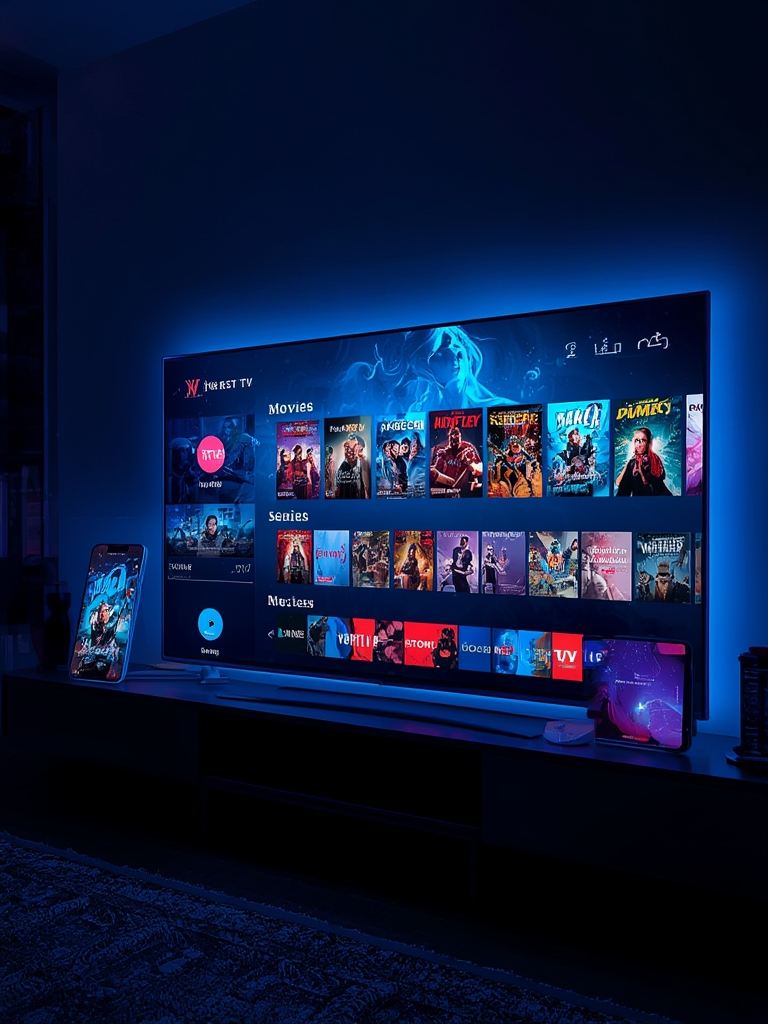
The Modern Streamer’s Guide: How to Choose & Setup the Best IPTV Apps for 2024
The landscape of home entertainment has transformed dramatically. No longer are we chained to rigid cable schedules; today’s viewer demands flexibility, vast content libraries, and seamless access across devices. At the heart of this revolution is Internet Protocol Television (IPTV), a method of delivering television content over the internet. But with countless services vying for attention, finding the right tools is critical. This guide cuts through the noise, providing a data-driven, step-by-step walkthrough to help you select, configure, and optimize your streaming setup for maximum performance and security.
Required Devices & Apps
Your journey to a superior streaming experience begins with compatible hardware. The good news is that modern IPTV is incredibly versatile. You can enjoy it on virtually any internet-connected screen:
- Smart TVs (Samsung, LG, Sony, etc.): Most newer models support app installation directly.
- Android TV & Google TV Devices: Nvidia Shield, Chromecast with Google TV, and built-in Android TV boxes are powerhouse options.
- Amazon Fire TV Stick / Fire TV Cube: The most popular and cost-effective dedicated streaming devices.
- Mobile Devices: Smartphones and tablets (iOS and Android) for on-the-go viewing.
- Set-Top Boxes: Specialized IPTV boxes from various manufacturers.
Essential Software: You will need a reliable media player or dedicated IPTV streaming apps. For Android/Fire TV devices, TiviMate (subscription-based, premium UX) and OTT Navigator (feature-rich, one-time purchase) are top-tier. Smart IPTV and IPTV Smarters are also widely used. For a more native experience on some platforms, VLC media player can play M3U playlists. Always research an app’s reputation, update frequency, and user reviews before committing.
Setup Guide: From Download to Live TV
Setting up requires a subscription from a legitimate IPTV provider and a compatible player app. Here’s the universal workflow:
1. Subscribe to a Service: Obtain your M3U playlist URL or login credentials (username/password, portal URL) from your chosen provider. Reputable providers offer Electronic Program Guides (EPG) and Video on Demand (VOD).
2. Install Your Player: On your device (e.g., Firestick), go to the app store (or use “Downloader” for sideloading) and install your chosen best IPTV apps like TiviMate or IPTV Smarters.
3. Configure the App: Open the player. Select “Add User” or “Add Playlist.” Choose between entering a URL (M3U) or login credentials (XTream Codes API format is preferred for better EPG/VOD integration).
4. Input Your Details: Carefully paste your provider’s URL or enter your username/password/portal URL. Save.
5. Load Content & EPG: The app will fetch the channel list and EPG data. This may take a few minutes. Once complete, your live TV guide is ready! Use this step to properly integrate your service with one of the recommended IPTV streaming apps.
Pro Tip: Using the XTream Codes API format (if your provider offers it) almost always results in a more stable connection, proper EPG syncing, and accessible VOD libraries compared to a simple M3U URL.
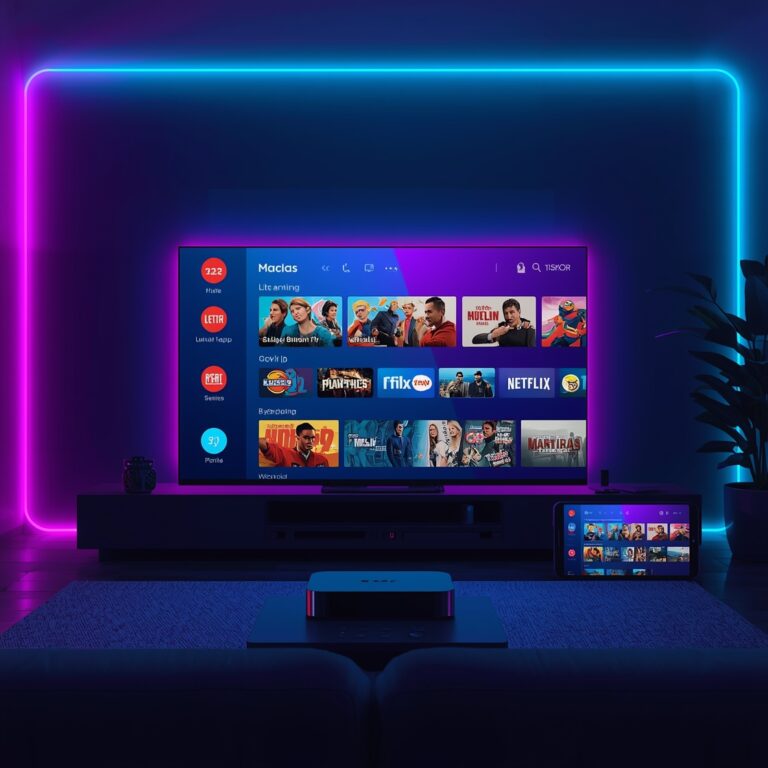
Streaming Quality & Performance Tips
A laggy stream ruins the experience. Optimize with these technical adjustments:
Internet Speed is King: For HD (1080p), aim for a consistent 5-10 Mbps. For 4K streams, 25+ Mbps is essential. Use a speed test ( Ookla Speedtest) on your actual streaming device* to check.
- Wired Over Wireless: Whenever possible, use an Ethernet cable for your streaming device or TV. This eliminates Wi-Fi interference and provides a stable, low-latency connection.
- Adjust App Playback Settings: Within your player app (e.g., TiviMate), explore settings. You can often manually select the stream buffer size (increasing it can reduce rebuffering on unstable connections) or force a specific video codec.
- Reduce Network Congestion: Ensure no other devices on your network are engaging in high-bandwidth activities (large downloads, 4K streaming on another TV) during your primary viewing.
- Use a Quality Router: An outdated router can bottleneck your speed. Ensure your router is at least Wi-Fi 5 (802.11ac) and place it centrally.
Advantages of Modern Streaming
The shift to app-based IPTV delivers undeniable benefits:
- Unmatched Flexibility: Watch what you want, when you want, from anywhere with an internet connection.
- Multi-Device Access: One subscription can power your living room TV, bedroom tablet, and commute-time phone.
- Massive Content Diversity: Access international channels, niche sports, specialty networks, and extensive VOD libraries far beyond traditional cable packages.
- Cost-Effectiveness: For many users, a monthly IPTV subscription can be significantly cheaper than comparable cable/satellite bundles.
- Modern Interface: Features like catch-up TV (replay shows from days ago), series recording (with compatible hardware), and intuitive, customizable electronic program guides (EPG) enhance usability.
Troubleshooting & Common Issues
Even with perfect setup, issues arise. Here’s your fix-it guide:
- Buffering/Rebuffering: Primary Culprit: Internet Speed. Run a speed test. Reduce stream quality within the app if needed. Switch from Wi-Fi to Ethernet. Restart your router.
- Channel Not Loading/404 Error: Your provider’s server for that specific channel may be down. Check their status page or social media. Try a different stream quality option within the app if available.
- EPG (Guide) Not Showing or Blank: Force a manual EPG update in your player’s settings. Ensure your playlist is using the XTream Codes API format for reliable guide data. Some providers have a separate EPG URL you may need to input.
- App Crashes or Freezes: Clear the app’s cache/data (in your device’s settings). Update the app to the latest version. Reboot your streaming device.
- Login/Portal Failures: Double-check your credentials for typos. Ensure you’re using the correct portal URL format (often ends in `/`). Contact your provider to confirm your account is active and not IP-locked.
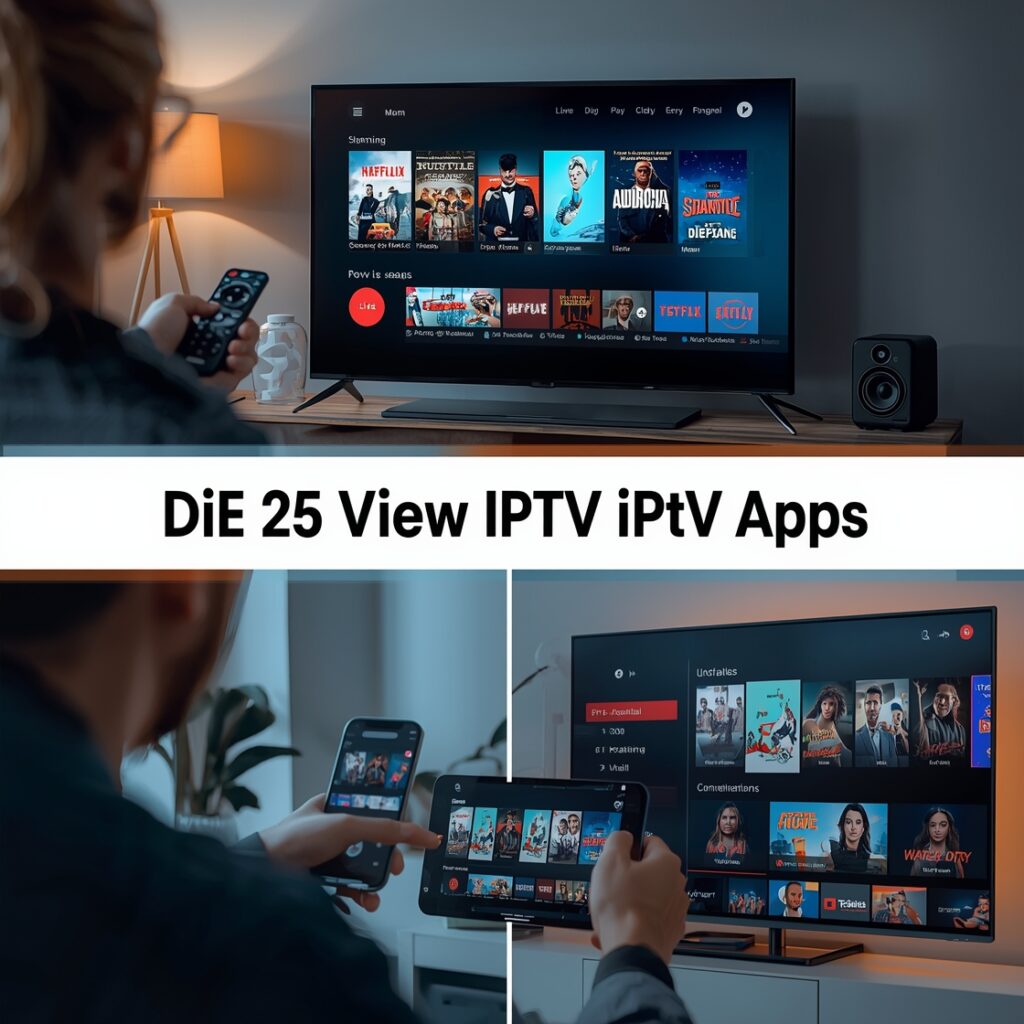
Security & Safe Streaming
The freedom of IPTV comes with responsibility. Prioritize safety:
1. Use a Reputable VPN (Virtual Private Network): A VPN encrypts all traffic from your device. This masks your streaming activity from your Internet Service Provider (ISP), which can help prevent throttling (slowing down your stream) and protects your privacy. It can also help access geo-restricted content.
2. Choose Providers Wisely: Research providers thoroughly. Avoid services that promise “everything for free” or have no clear business operation. Legitimate services have professional websites, customer support, and clear terms of service.
3. Secure Your Network: Use a strong, unique password for your Wi-Fi router. Keep your streaming device’s operating system and all apps updated to patch security vulnerabilities.
4. Beware of Malware: Only download apps from official stores (Google Play Store for Android TV, Amazon Appstore for Fire TV) or highly trusted developer websites. Avoid unofficial “modded” APK files that may contain malware.
Conclusion
The world of internet-based television is powerful and accessible, but success hinges on using the right tools correctly. By selecting a reputable IPTV streaming apps, ensuring your hardware is optimized, fine-tuning your network settings, and prioritizing security with a VPN, you unlock a seamless, high-quality, and flexible entertainment hub. The best IPTV apps are those that offer stability, a great user interface, and reliable integration with your service provider. Invest time in the setup process outlined here, and you’ll enjoy a premium viewing experience that puts you firmly in control. For deeper dives into specific device setups or provider comparisons, explore our library of detailed guides.
FAQs
Q1: Do I need a smart TV to use IPTV?
No. Any device that can install apps and connect to the internet works—Firestick, Chromecast, Android TV box, iPhone, Android phone, or even a Windows/Mac PC with VLC.
Q2: Is IPTV legal?
IPTV technology itself is legal. Legality depends on the content source. You must subscribe to a service that has properly licensed the content it redistributes. Using a service that rebroadcasts copyrighted content without permission is illegal in most countries.
Q3: Why does my stream keep buffering even with good internet?
This is often due to server-side issues from your IPTV provider (overloaded channels) or a poor-quality stream link. Try a different channel or quality setting. Ensure your device isn’t overheating and that your router isn’t the bottleneck.
Q4: Can I use my IPTV subscription on multiple devices at once?
Most residential subscriptions allow 1-3 simultaneous connections. “Unlimited” claims are often misleading. Check your provider’s terms. Exceeding the connection limit will typically cause streams to fail.
Q5: What’s the real difference between an M3U playlist and XTream Codes API?
M3U is a simple list of stream links. XTream Codes API is a more advanced system that delivers the channel list, EPG, and VOD in a structured format, leading to better app integration, more reliable EPG, and easier management. Always prefer XTream Codes if your provider offers it.