


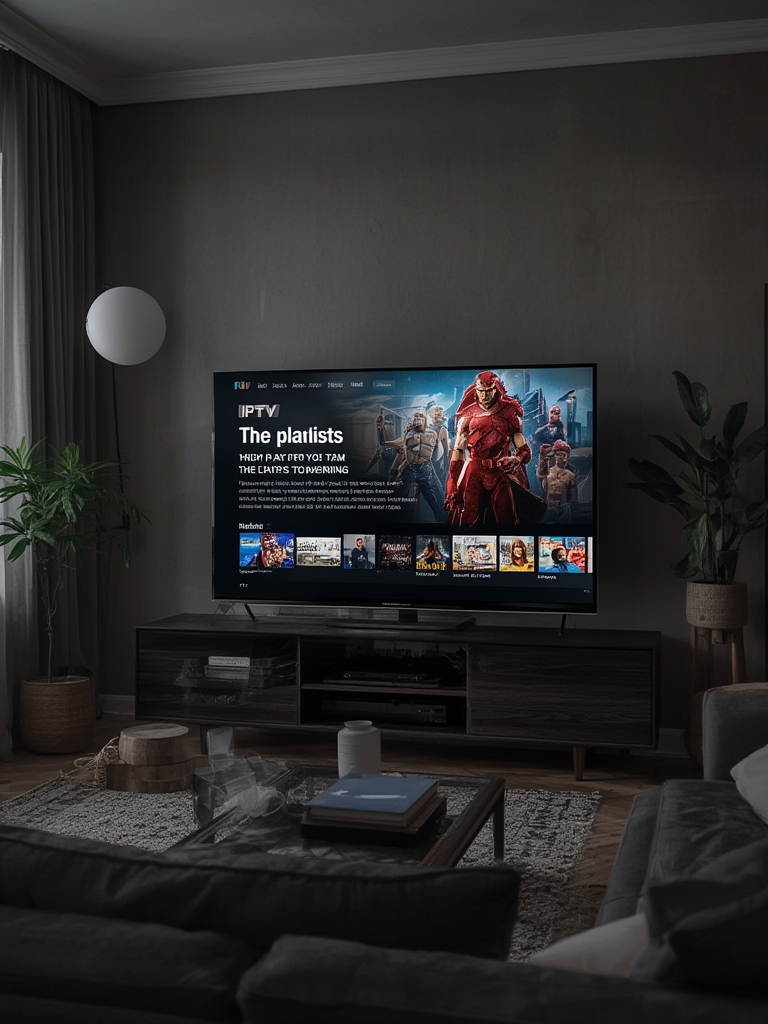
Unlock Endless Entertainment: Your Complete Guide to IPTV & M3U Streaming
Tired of expensive cable bills and limited channel options? The future of television is here, and it’s powered by internet-based streaming. For cord-cutters and entertainment enthusiasts alike, understanding how to leverage modern streaming protocols is the key to a world of live TV, movies, and shows from across the globe. At the heart of this revolution are two fundamental technologies: the IPTV playlist and the M3U playlist. This guide will demystify everything, transforming you from a novice to a confident streamer, capable of setting up a robust, flexible entertainment system on any device.
Required Devices & Apps for Seamless Streaming
The beauty of modern streaming is its universal accessibility. You can enjoy your content on virtually any screen with an internet connection. Here’s a breakdown of compatible hardware and the best applications to bring your IPTV playlist to life:
- Smart TVs & Streaming Boxes: Most modern Smart TVs (Samsung Tizen, LG webOS, Android TV/Google TV) have built-in app stores. Dedicated streaming devices like the Amazon Firestick, NVIDIA Shield, or Apple TV offer the most powerful and user-friendly experience.
- Mobile & Tablet: iOS (iPhone/iPad) and Android smartphones/tablets are perfect for on-the-go viewing.
- Recommended Apps: Success hinges on choosing the right player. Top-tier, user-friendly options include TiviMate, Perfect Player, Smart IPTV (SIPTV), and IPTV Smarters. For a more universal approach, VLC Media Player or MX Player on Android can directly load an M3U playlist file or URL, offering a no-fuss solution. Always download these apps from official sources like the Google Play Store or Amazon Appstore to avoid malware.
Setup Guide: Step-by-Step Installation
Getting started is straightforward. Follow these universal steps, and you’ll be watching in minutes.
1. Choose & Install Your App: Based on your device (e.g., Firestick, Android TV, smartphone), go to its app store and install your chosen player, such as TiviMate or IPTV Smarters.
2. Acquire Your Playlist URL: This is the most critical step. You need a valid, active stream URL. Reputable providers offer a secure portal where you can find your unique M3U playlist link. This text-based file contains all the channel information and stream paths.
3. Load the Playlist: Open your installed app. Look for an option like “Add Playlist,” “Add User,” or “Load M3U.” You will typically be prompted for two things: a Playlist URL (paste the link from your provider) and a Portal URL (sometimes required for authentication). Paste your IPTV playlist URL into the designated field.
4. Save & Refresh: Save your settings. The app will now fetch the channel list from the URL. This may take a few moments. Once complete, your full electronic program guide (EPG) and channel lineup should populate.
(Image: A screenshot of a typical IPTV app interface showing where to paste the playlist URL.)
Streaming Quality & Performance Tips
Buffering and low resolution can ruin the experience. Optimize your setup with these pro tips:
- Internet Speed is King: For HD (720p/1080p) streaming, a stable 25 Mbps connection is the baseline. For 4K, aim for 50 Mbps or higher. Use a wired Ethernet connection for your streaming device whenever possible—it’s always faster and more stable than Wi-Fi.
- Check Server Load: Sometimes, buffering occurs on the provider’s end. If an entire channel group is struggling, the source server might be overloaded. Be patient or try a different channel.
- App Settings Tuning: Within your streaming app, adjust the video buffer size. A slightly larger buffer (e.g., 5-10 seconds) can smooth out minor internet hiccups at the cost of a tiny channel-change delay. Ensure the app’s video player is set to “Auto” or “Hardware” decoding for optimal performance.
- Restart Your Router: The classic fix. Power cycle your modem and router to clear any cache and establish a fresh connection.
Advantages of Modern Streaming
Ditching traditional cable for an IPTV playlist-based system offers undeniable benefits:
- Unmatched Flexibility & Cost: Pay a fraction of cable costs for thousands of channels, including international and niche packages. No long-term contracts.
- True Multi-Device Access: Your subscription follows you. Watch on your living room TV, tablet in the kitchen, or phone in the backyard—all simultaneously.
- On-Demand & Cloud DVR: Many services integrate massive video-on-demand (VOD) libraries and cloud-based recording capabilities, putting you in complete control of your viewing schedule.
Troubleshooting & Common Issues
Encounter a problem? Here’s your quick-fix guide:
- “Playlist URL Invalid” or “No Channels”:
* Fix: Double-check for typos in your M3U playlist URL. Ensure your subscription is active and you haven’t exceeded device limits. Contact your provider to confirm the link hasn’t expired or changed.
- Channels Won’t Load / Constant Buffering:
* Fix: First, test your internet speed (speedtest.net). Then, try switching to a different video stream quality within the app (e.g., from 1080p to 720p). The issue could be a specific channel’s server.
- App Crashes or Freezes:
* Fix: Clear the app’s cache and data (in your device’s Settings > Apps). As a last resort, reinstall the app. Ensure your device’s firmware is updated.
- Missing EPG (TV Guide):
* Fix: Some apps require you to manually enable or update the EPG source. Check the app’s settings for “EPG” or “XMLTV” options and point it to the correct URL provided by your service, or enable auto-download.
(Image: A person looking frustrated at a buffering screen on a TV.)
Security & Safe Streaming Tips
Navigating the streaming world requires caution. Protect yourself with these habits:
- Use a Reputable VPN: A Virtual Private Network (VPN) encrypts your traffic, hiding your streaming activity from your Internet Service Provider (ISP). This can prevent throttling and adds a layer of privacy. Choose a proven, no-logs VPN service.
- Source Your Playlist Responsibly: Obtain your IPTV playlist from legitimate, well-reviewed providers. Avoid completely free, “too good to be true” services flooding the web—they often host pirated content, malware, or simply disappear.
- Keep Software Updated: Regularly update your streaming device’s firmware and your chosen apps to patch security vulnerabilities.
- Strong, Unique Passwords: If your provider uses a portal login, use a strong, unique password and never share it.
Conclusion: Your Streamlined Future Awaits
The shift to internet-based television through an IPTV playlist and M3U playlist framework represents the ultimate liberation for viewers. It’s about choice, value, and convenience. By carefully selecting your devices, installing a reliable app, correctly loading your playlist URL, and following our optimization and security tips, you are now equipped to build a premium, personalized entertainment hub. The power is in your hands. For more deep dives into specific apps, legal considerations, and advanced configurations, explore our library of detailed streaming guides and start elevating your home entertainment today.
Frequently Asked Questions (FAQs)
Q1: Is using an IPTV service legal?
A1: The technology itself (IPTV) is legal. Legality depends entirely on the content source. You must subscribe to services that have proper licensing for the channels they provide. Always research the provider’s content rights.
Q2: What’s the practical difference between an M3U playlist and an IPTV playlist?
A2: They are often used interchangeably. Technically, an M3U playlist is the file format (a simple text list of stream URLs). An IPTV playlist usually refers to the service or product—a dynamic, updated M3U list provided by an IPTV subscription service, often with EPG data.
Q3: My Firestick is slow; will IPTV still work well?
A3: Older Firestick models (Gen 1, Gen 2) can struggle with high-bitrate HD streams. Use an app with a lightweight interface (like Smart IPTV) and manually set the stream quality to 720p in the app’s settings. For the best experience, consider upgrading to a Firestick 4K Max or NVIDIA Shield.
Q4: Can I use one IPTV subscription on multiple devices at once?
A4: It depends on your provider’s policy. Most offer different connection tiers (e.g., 1, 2, or 5 simultaneous connections). Purchasing a plan with enough connections for your household is crucial to avoid login conflicts or account flags.
Q5: Why do some channels have no sound or say “Signal Lost”?
A5: This is almost always a source issue on the provider’s end—the channel’s encoder has crashed or been taken down. It’s not a problem with your setup. Wait 10-15 minutes; if it persists, report the dead channel to your IPTV provider for them to fix.