


The Complete IPTV Streaming Setup Guide for 2026: Devices, Apps & Optimization
Introduction
The way we consume television has undergone a seismic shift. Traditional cable subscriptions are increasingly giving way to internet-based streaming solutions, with Internet Protocol Television (IPTV) leading the charge. This technology delivers live TV, movies, and on-demand content directly over the internet, offering unprecedented flexibility and choice. But what exactly is this technology reshaping our living rooms? Understanding what is IPTV and the broader IPTV meaning is crucial for any modern streaming enthusiast looking to cut the cord efficiently. Unlike standard apps like Netflix, which use closed ecosystems, IPTV leverages standard internet protocols to stream linear television broadcasts, replicating the traditional cable experience but with greater customization and often at a fraction of the cost. This guide will demystify the setup process, optimize your performance, and ensure a safe, high-quality viewing experience across all your devices.
Required Devices & Apps
Getting started with IPTV is surprisingly accessible, as it works on nearly any device with a screen and an internet connection. Here’s your essential hardware and software checklist:
- Smart TVs & Streaming Devices: Most modern Smart TVs (Samsung Tizen, LG webOS, Android TV/Google TV, Vizio SmartCast) are compatible. For older TVs, dedicated streaming boxes are ideal. The Amazon Firestick (all versions) and Fire TV Cube are community favorites due to their affordability, ease of sideloading apps, and powerful performance. Google’s Chromecast with Google TV and NVIDIA SHIELD (for demanding users) are also excellent.
- Mobile & Tablet: iOS (iPhone/iPad) and Android smartphones and tablets are perfect for on-the-go viewing. Ensure you download apps directly from official stores when possible.
- Recommended Applications: Your choice of app is as important as your device. For a premium, user-friendly experience with robust Electronic Program Guide (EPG) support, TiviMate (Android/Android TV) is the industry benchmark. Smart IPTV (multiple platforms) and IPTV Smarters are also highly reliable. For Apple TV, consider CloudStream or IPTVnator. Always download these from their official websites or trusted repositories to avoid malware.
Setup Guide (Step-by-Step)
To grasp what is IPTV practically, follow this universal workflow. The core principle, defined by the IPTV meaning, is delivering video over IP networks, but the setup is straightforward:
1. Choose a Reputable IPTV Service Provider: This is the most critical step. Research providers based on channel lineup (especially your must-have sports and international channels), video-on-demand (VOD) library, pricing, and trial availability. Look for services with high uptime guarantees (99.9%+) and positive user reviews regarding stream stability.
2. Obtain Your Credentials: After subscribing, your provider will send you login details. This typically includes a portal URL (the app’s login address), a username, and a password. Some may also provide an M3U playlist URL or an Xtream Codes API link for easier setup.
3. Install Your Chosen App: Go to your device’s app store (Amazon Appstore, Google Play Store) and install your selected IPTV player (e.g., TiviMate, IPTV Smarters). For Firesticks, you may need to enable “Apps from Unknown Sources” in settings to sideload certain apps.
4. Configure the App: Open the app and select “Login” or “Add User.” Enter the credentials (Portal URL, Username, Password) provided by your IPTV service. The app will then fetch your channel list, EPG data, and VOD content.
5. Organize & Enjoy: Use the app’s built-in tools to favorite channels, create custom groups (e.g., “Sports,” “News,” “Kids”), and configure the EPG for a cable-like guide. Once loaded, you’re ready to stream.
Streaming Quality & Performance Tips
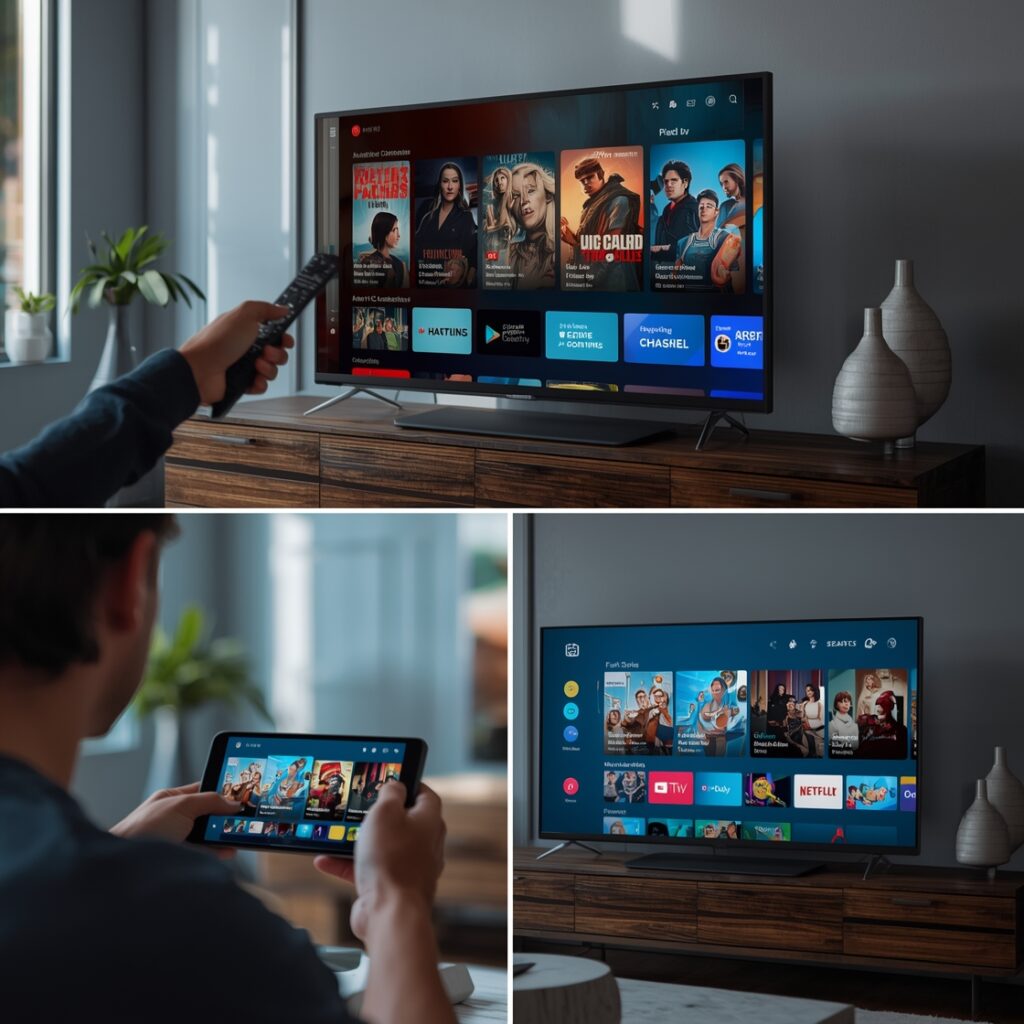
A flawless stream hinges on your internet connection and device optimization. Buffering is the arch-nemesis of IPTV, but it’s largely preventable.
- Internet Speed is Non-Negotiable: For stable HD (1080p) streaming, a minimum consistent speed of 15-25 Mbps is recommended. For 4K streams or multiple simultaneous devices, aim for 50+ Mbps. Use a wired Ethernet connection instead of WiFi whenever possible for your primary streaming device (Firestick, Smart TV). If WiFi is your only option, ensure a strong 5GHz signal.
- Optimize App Settings: Within your IPTV app, adjust the player settings. Set the video buffer to a higher value (e.g., 2000-4000 ms) to pre-load more content, which combats minor internet hiccups. Disable any “auto” quality settings and manually select your desired resolution to prevent unwanted downscaling.
- Manage Your Network: During peak evening hours (7 PM – 11 PM), your ISP’s network may be congested. If you experience issues, try streaming at off-peak times. Prioritize your streaming device’s traffic using your router’s Quality of Service (QoS) settings if available.
Advantages of Modern Streaming
The shift to IPTV is driven by compelling benefits that traditional TV struggles to match:
- Unmatched Flexibility & Choice: Ditch rigid cable packages. Subscribe to services with thousands of live channels from across the globe, curated VOD libraries, and niche content you actually want. Watch what you want, when you want.
- True Multi-Device Access: One subscription typically covers all your devices—living room TV, bedroom tablet, phone on the commute. Your profile and preferences sync seamlessly.
- Cost-Effectiveness: For a fraction of the average cable bill, you gain access to a vastly superior and more personalized content library. There are often no long-term contracts.
- On-Demand & Catch-Up: Missed your show? Most IPTV services integrate a “Catch-Up” feature (replay TV from the last 7 days) and massive VOD sections, putting you in complete control of your viewing schedule.
Troubleshooting & Common Issues
Even with perfect setup, occasional glitches occur. Here’s how to fix them:
- Constant Buffering/Low Quality: First, check your internet speed using a speed test on the same device. If speeds are low, troubleshoot your network (restart router, move closer, use Ethernet). Next, reduce the stream quality in your app’s settings. Finally, the issue may be with your provider’s server load; contact their support.
- App Crashes or Freezes: Clear the app’s cache and data (found in your device’s Settings > Apps). Uninstall and reinstall the latest version of the app. Ensure your device’s firmware/software is up to date.
- Missing Channels or Incorrect EPG (Guide): This is often a provider issue. First, force a “Refresh” or “Update” of the playlist/EPG within the app settings. If it persists, check your provider’s status page or social media for known outages. Sometimes, a complete re-login is necessary.
- “Your device is not authorized” or Login Errors: Double-check your username, password, and portal URL for typos. Your subscription may have expired. Contact your IPTV provider to confirm your account is active and hasn’t hit a device limit.
Security & Safe Streaming Tips
Navigating the IPTV landscape requires caution. Adopt these practices:
- Use a Reputable VPN (Virtual Private Network): A VPN encrypts your internet traffic, hiding your streaming activity from your ISP. This prevents ISP throttling (slowing down your streams) and adds a layer of privacy. Crucially, it is your responsibility to understand the legal status of IPTV in your country. A VPN does not make illegal streaming legal.
- Stick to Trusted Apps & Sources: Only download IPTV player apps from official stores (Google Play, Amazon Appstore) or the developer’s verified website. Avoid “free IPTV” apps from unknown sources; they are notorious for containing malware, spyware, and aggressive ads.
- Research Providers Thoroughly: Legitimate IPTV services operate within complex copyright frameworks. Be wary of services offering “all channels for $10/month”—this is often a red flag for piracy-based services that can shut down without notice. Look for transparency, professional websites, and clear terms of service.
Conclusion
The world of internet-based television offers a powerful, personalized alternative to traditional broadcasting. By now, you should clearly understand what is IPTV and the full scope of IPTV meaning: a flexible, cost-effective method of delivering live and on-demand video via the internet. Success hinges on choosing a reliable service, compatible hardware, and a feature-rich app, all while proactively managing your network for optimal performance. With the right setup, you unlock a universe of entertainment tailored to your preferences. Ready to dive deeper? Explore our library of detailed streaming guides for Firestick optimization, top-rated IPTV service comparisons, and advanced troubleshooting techniques to elevate your home entertainment setup from good to exceptional.
FAQs
Q: Is IPTV legal?
A: The technology itself (IPTV) is perfectly legal. Legality depends entirely on the content source of the service provider. Licensed services that have agreements with content owners are legal. Services that retransmit copyrighted content (like major cable channels) without permission are illegal in most jurisdictions. You are responsible for the services you choose.
Q: What’s the minimum internet speed I need for smooth IPTV?
A: For a single device streaming in HD (1080p), a consistent 15-25 Mbps is the practical minimum. For 4K streams or multiple devices streaming concurrently, target 50 Mbps or higher. Use a wired Ethernet connection for the best results.
Q: Can I use IPTV on my iPhone or iPad?
A: Yes, absolutely. iOS is well-supported. Apps like IPTV Smarters Pro and CloudStream are available directly on the Apple App Store. You will enter your provider’s login details (portal URL, username, password) within the app.
Q: My Firestick keeps buffering. Is it my provider or my internet?
A: It’s often a combination. First, test your internet speed on another device on the same network. If speeds are low, the problem is your connection. If speeds are good, the issue is likely your provider’s server load (try a different channel or time of day) or your Firestick’s WiFi signal. Switching to an Ethernet adapter for your Firestick is the single most effective fix for most users.
Q: What’s the difference between an M3U URL and Xtream Codes?
A: Both are ways to connect your app to your provider’s service. An M3U URL is a simple text playlist link. An Xtream Codes API (often called a “portal URL”) is a more advanced system that includes your username/password and provides a richer, more stable connection with better EPG (guide) data. Most modern apps prefer and support Xtream Codes for a superior experience. Your provider will tell you which to use.